
Find your MyChartLog in with Epic ID
  • Explore
  • News
  • Share My Story
  • About
  • Help
    Find your MyChart
    Log in with Epic ID
    Explore
    News
    Share My Story
    About
    Help
Help
Message your care team in MyChart

How do I send messages to my care team in MyChart?

You can use MyChart to send messages for non-urgent medical questions to your care team. This message is secure, meaning your information stays private. If you're having trouble sending messages, you can use the instructions and videos below to get started.

You might send a message if you're not sure whether you should come in for an appointment, if you need clarification on the dosage of one of your medications or something that was discussed in a recent visit, or if you just want advice about a common illness. 
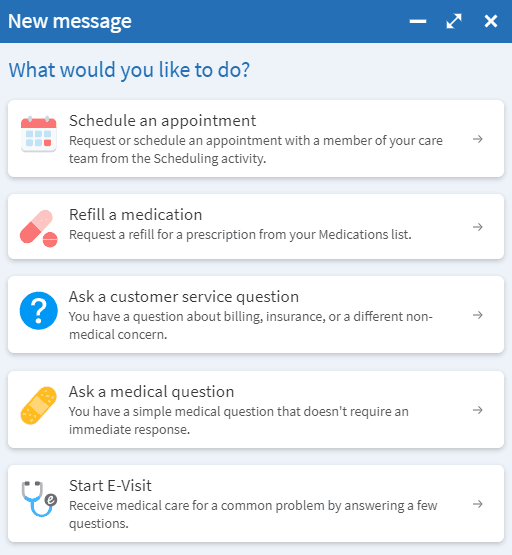
  1. Go to Messages.
  2. Select Send a message.
  3. Select Ask a medical question. Review any disclaimers that appear and select Next.
  4. Select the topic that best matches your medical question.
  5. Select the recipient for the question. If you choose the same topic and recipient as a recent MyChart conversation, choose whether to continue that conversation or to start a new one. 
  6. Enter a Subject for the message and type your question in the text box below.
  7. When you are finished, select Send.

If you've opted to receive notifications for new messages in your MyChart account, you receive a message or push notification letting you know that the organization has responded to your request. You can read any messages sent by your provider or care team by going to your Message Center (Communication > Messages).

The Message Center includes four folders:
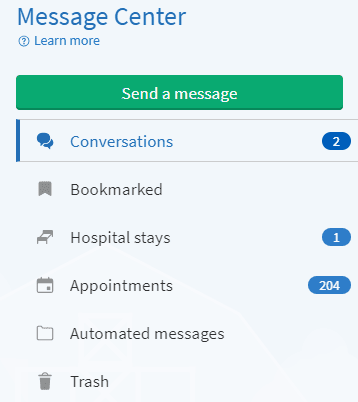
  • The Conversations folder is the primary folder and includes messages between you and your care team or other clinic staff. The list of messages in this folder is organized by conversation to keep messages and replies together.
    • To flag a conversation for easy access in the future, open the conversation and bookmark it. The conversation then appears in the Bookmarked folder.
    • If you're interrupted when writing a message, your message is saved in the Conversations folder and marked as a Draft. Select the message to reopen it so you can finish and send it. If you no longer need the draft, select the message to reopen it and select Discard.
  • The Appointments folder includes appointment reminders and confirmations. 
  • The Automated Messages folder includes system messages automatically sent to and from your account, like payment confirmations and questionnaire submissions. 
  • The Trash folder includes any conversations you've deleted from your main folders. If you realize you need a message again, you can restore it to its original folder.

For more information about connecting with your doctor virtually, go to this page.

Related Questions

If I send a MyChart message, when can I expect a reply?

Most healthcare organizations respond to MyChart messages within three business days. Use MyChart messages for non-urgent medical questions only. Call 911 for emergencies.

Why can’t I message the provider I’m looking for?

Each organization chooses which providers are available for messaging. You can usually only message providers you have seen recently or have an upcoming visit with.

MyChart is Epic

MyChart licensed from Epic Systems Corporation © 1999–2026

Engage

  • Find your MyChart
  • Explore
  • News
  • Share my story

Learn more

  • About
  • Help
  • Privacy policy
  • Patient registry
  • Community training hub

Download the app

Download on the App Store
Get it on Google Play